What is "Sign in as user," and how can I use it to manage accounts on my Dropbox Business team?
This article discusses a feature that is only available to Dropbox Business and Dropbox Enterprise teams.
Sign in as user allows Dropbox Business team admins to sign in to the Dropbox accounts of members of their teams. This feature gives team admins direct access to the files and folders in team member accounts, and access to make changes or share on behalf of team members.
If you're a team admin, you can use this feature to organize a new employee's Dropbox before they start, more easily troubleshoot issues, or keep a project moving even while team members are away from the office.
Note: If you're the team admin of a Dropbox Business team, you should periodically review the list of admins on your account.
What can I do with Sign in as user?
Sign in as user allows team admins to:
- View a team member's folder structure
- Share files and folders with others
- View, open, and download files
- Delete files, or restore deleted files
- View Paper docs and folders
- Share docs and folders with other users
- Move Paper docs and folders
- Restore archived Paper docs
- Archive and permanently delete Paper docs
If you're a team admin, and you need to help a team member change account settings—for example, resetting a password—you should manage this using the Admin Console.
Two notes for Dropbox Business team members:
- If you have connected your personal and work Dropbox accounts, sign in as user will not allow team admins to access your personal account in any way.
- Shared files and folders can still be edited by anyone you've given access to.
How do I sign in as a member of my Dropbox Business team?
- Sign in to dropbox.com.
- Open the Admin Console.
- Open the Members page.
- Click the gear icon beside the name of the team member you would like to sign in as.
- Click Sign in as user
- Click Sign in to confirm that you would like to sign in as the selected user.
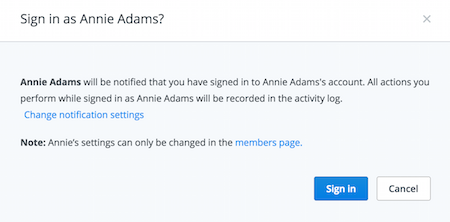
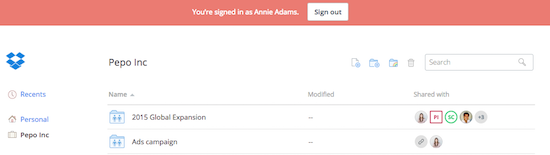
You'll then be taken to the account of the user you selected, where you can act on this user's behalf. When you're done, be sure to click Sign out on the red banner at the top of the page. This will help you avoid accidentally making changes to the wrong account later.
- Note: When you sign in as a user on your team, you will not be able to simultaneously access any other Dropbox account (including your own), whether in a new window or tab in your browser
- To access a different Dropbox account (including your own), sign out of your team member's account
Visit this article to learn more about signing into Paper as a team member.
Sign in as notifications and logging
If you use sign in as to access a team member's account, you will encounter several notifications. You will also have the opportunity to notify your team member that you have accessed their account (though this is optional).
Team member / admin notifications: If you click Change notification settings in the notifications window, you will have the option to select who receives notification that you have signed in as a team member. These options will vary slightly, depending upon whether your account has one or multiple team admins. Regardless of which option you select, your use of sign in as, and any subsequent actions you take on behalf of a user, will be logged in your account's activity log.
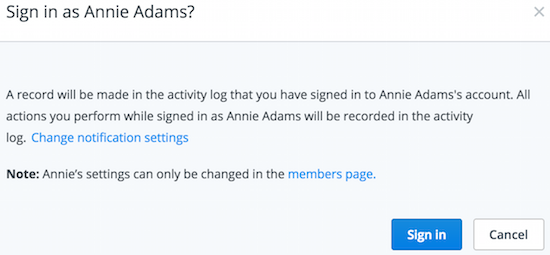
Change notification settings
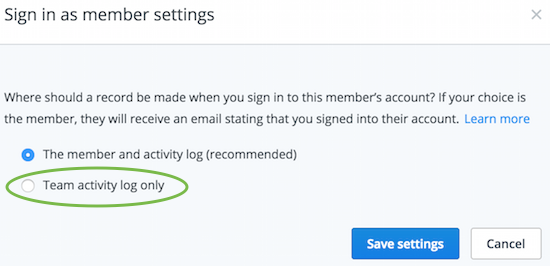
Sign in as user: accounts with a single team admin
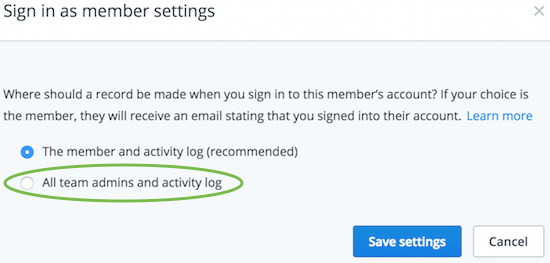
Sign in as user: accounts with multiple team admins
- Note: If you select The member and activity log (recommended), the team member will receive an email notification that you have accessed their account.
Current sign in as status: If you are currently signed in as a member of your team, you will see a notification bar at the top of the page.
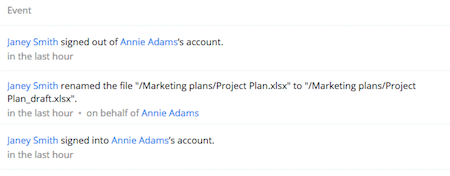
Activity log: If you use Sign in as to take an action on behalf of a member of your team, you will see a record of that action in your team activity log.