
How can I limit access to a shared link?
Dropbox Business
Limit shared links access to members of your team
- Sign in to dropbox.com.
- Hover over the file or folder name and click the Share button that appears.
- In the popup, click Link settings.
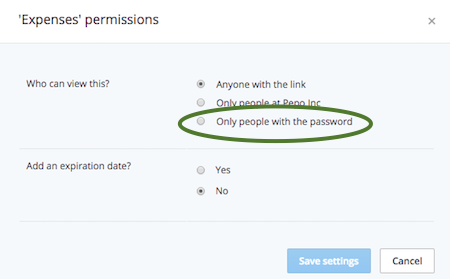
- Click Only people with the password.
- Note: Toggling between the options for Who can view this? removes existing passwords.
- Set a password.
- Click Save settings.
- Click Only people at [team name].
- Click Save settings.
Once saved, you can copy and paste the link to an email or send it directly through Dropbox.
Dropbox Business and Pro
Set passwords to shared links
- Sign in to dropbox.com.
- If you're sharing a link to an individual file, click the Share button beside the file name. In the popup, click Link settings.
- If you're sharing a link to a folder, click the Share button beside the folder name, and in the popup click Folder settings.
- Click Only people with the password.
- Note: Toggling between the options for Who can view this? removes existing passwords.
- Set a password.
- Click Save settings.
Once saved, you can copy and paste the link to an email or send it directly through Dropbox.
Frequently asked questions
What does a shared link with a password look like for a recipient?
If someone tries to view a shared link with a password, they see this page:
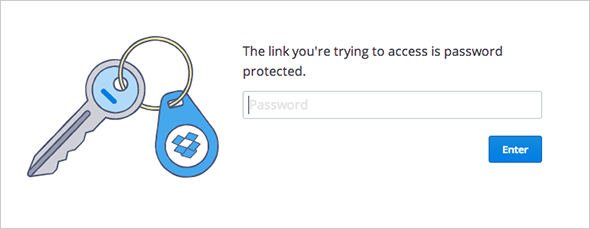
Once they enter the password, they’ll see the normal shared link page.
What if I forget my password for the link or want to change it?
You can reset the password for any link you've shared in the same way that you set the password. If you’ve forgotten the password, you can create a new password, or you can always disable the link. For security reasons, we never display your existing passwords.
I'm a Dropbox Business team member. Does my admin have any control over the passwords I set?
Admins can’t enforce password policies for team member shared links. What admins can do is restrict all shared links to "team-only."
Admins: learn how to make links team-only.

